


1. Before you start
Your firm or chambers must register with Common Platform before you can use it.
Once registered, you will receive an email from [email protected]. Please check junk and spam filters for this notification.
Follow the link in the email to complete your one-time account activation and security set up.
You must activate your account before you can find and manage cases in Common Platform.
2. Serve documents to the court
In magistrates’ court cases, you can use Common Platform to serve documents to the court by adding case material. You can only do this if the case started on Common Platform. For cases that didn’t start on Common Platform, you should serve documents directly to the relevant court.
In Crown court cases, you should continue to use Digital Case System (DCS) to serve documents.
When the Crown Prosecution Service (CPS) serve documents and bundles in the magistrates’ court, you will either be able to view it on Common Platform or they will send it my secure email. Depending on the document or bundle type, they may serve it on both Common Platform and by email.
| Magistrates’ court case document or bundle | Common Platform | Secure email |
|---|---|---|
| IDPC bundle | Yes | No |
| IDPC letter to defence | No | Yes |
| Applications (for example, bad character, special measures, CTL extensions) | Yes | Yes |
| Discontinuance notice | Yes | Yes |
| Further charges | Yes | Yes |
| S9 bundle | Yes | No |
| Magistrates’ court evidence bundle | Yes | No |
| Unused material bundle | No | Yes |
| Streamlined Disclosure Certificate (SDC) | No | Yes |
| Disclosure management document | Yes | Yes |
3. Add case material
You should upload case material before the hearing so that matters can be progressed and then dealt with in the courtroom.
You should use standard criminal procedure rules forms for uploading case material. This makes sure that all relevant information is captured and it is in a standard format.
1. In the ‘Case materials’ tab select ‘Add new material’.
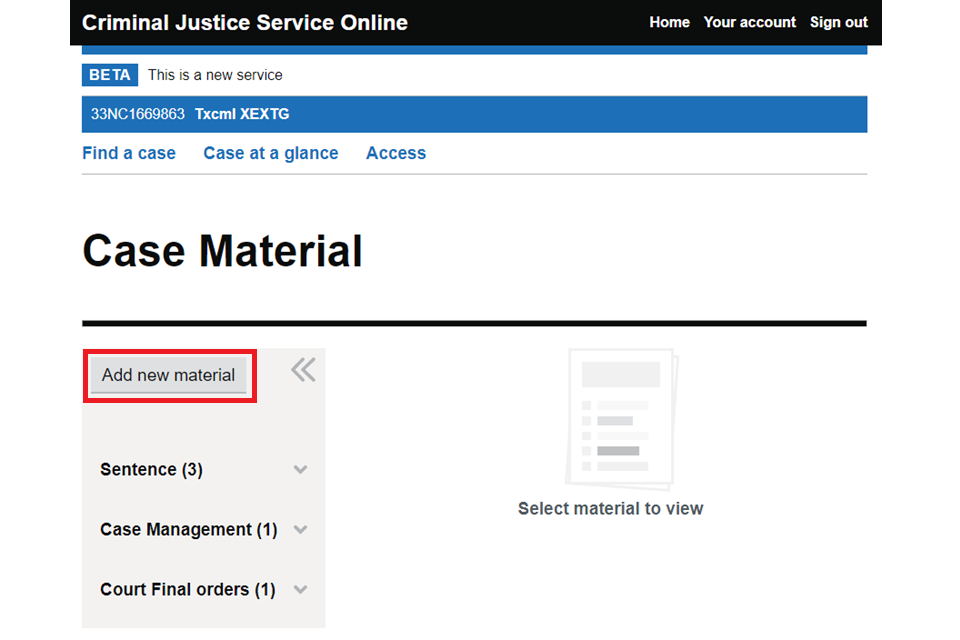
2. A form box will open – choose the file you want to upload.
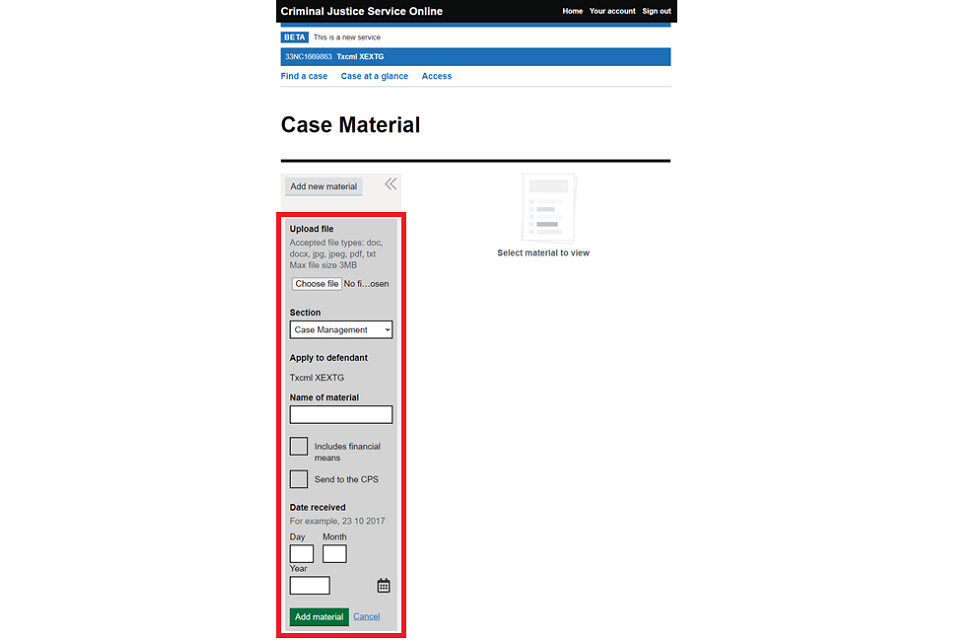
3. From the drop-down menu, select the material section you wish to place the document in. If you are uploading an application, you must select the ‘Applications’ section. This will alert the CTSC to formally add the application or adjudication.
4. If you are representing more than one defendant on the case, both names will appear. Check the box next to the name of the defendant the material applies to. You will not see a checkbox if you are only representing one defendant.
5. Name the material as you want it to appear to others viewing the case. The name should be descriptive so others know what it is.
6. If the material has information about the defendant’s financial means, check the ‘Includes financial means’ box. This will make sure the material is only held for as long as necessary, to comply with GDPR rules.
7. When uploading to certain sections (such as ‘Case management’), a ‘Send to CPS’ checkbox appears. Check this box to simultaneously serve the document on the court and CPS. The CPS will receive an email with the document attached.
8. Add the date that you received the document.
9. Select ‘Add material’. You will receive a success message and the document will be added to the relevant material section. It will then be available to view for anyone with access to the case, including the court.
4. Edit and upload documents
You will have restricted access to edit documents in Common Platform, including the PET form. You will not be able to edit any documentation from partner agencies (such as statements or exhibits).
You can only edit documents in Common Platform for magistrates’ court cases. For Crown court cases, you should use DCS.
1. In the ‘Case material’ tab, select and download the document you want to amend, such as the PET form.
2. Make the required changes then upload the amended version. Make sure the document title remains the same but add the date you amended it. For example, ‘Preparation for effective trial 02.01.22’. This allows everyone to see a clear version history.
3. For magistrates’ court cases, if you need to send the document to the CPS, make sure the ‘Send to CPS’ checkbox is checked. The CPS will receive an email with the document attached.
5. Further help and guidance
For help with serving documents and adding case material, speak to your organisation’s administrator or contact us.
Helpdesk
Telephone – 0300 303 0688
Monday to Friday, 8am to 6pm (excluding bank holidays)
We aim to respond within 5 working days.
This guide is for defence professionals. If you are another type of user and need help with Common Platform, please email [email protected].
