

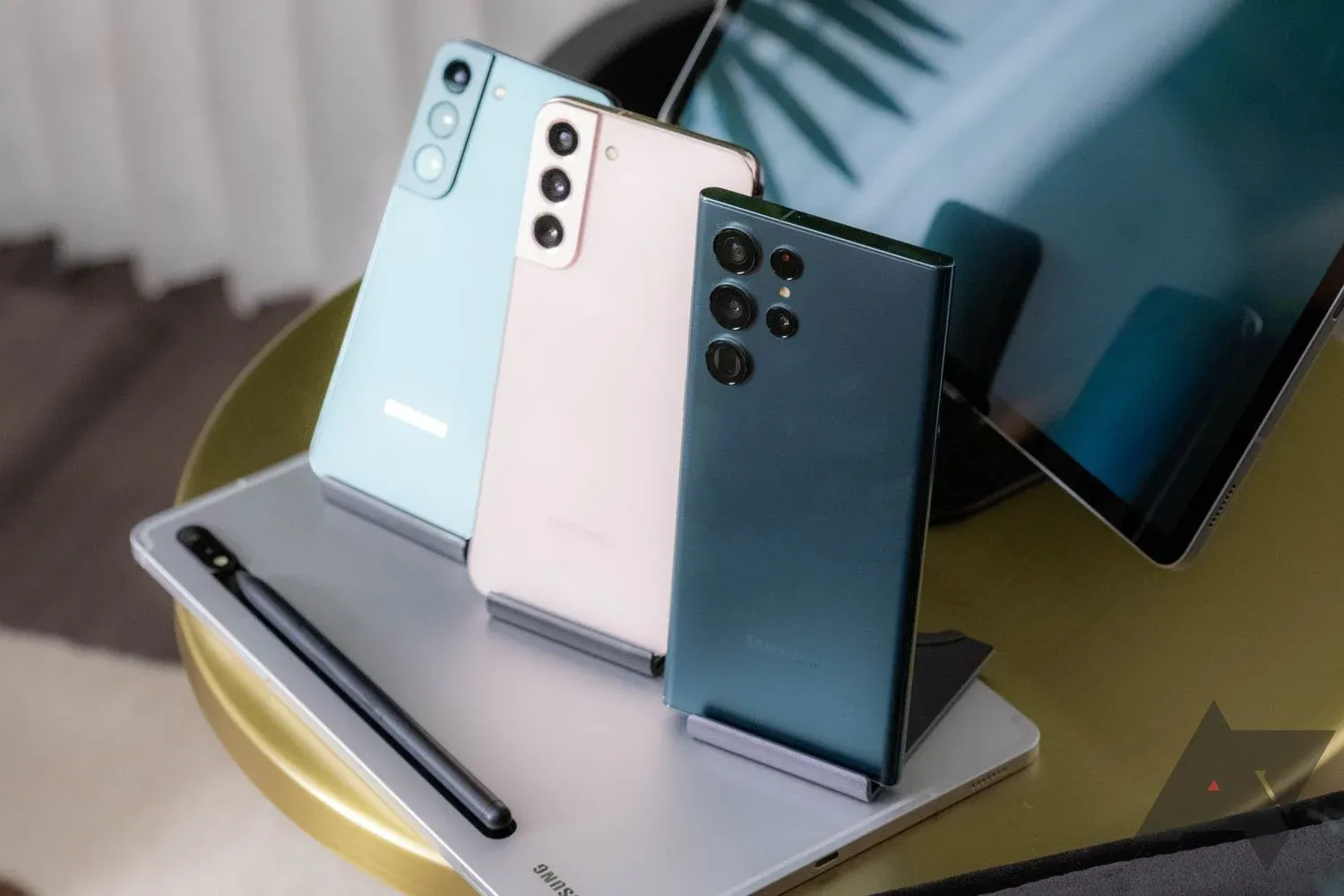
Between the banking apps, email accounts, work chat apps, and spicy pictures you may or may not be sending to your romantic partner, there are probably about a dozen different ways your phone can seriously ruin your day if anyone other than you got hold of it and somehow managed to access the data on it. For the sake of data privacy and security, it’s a good idea to always do a full factory reset of your device before you send it to its next life, whether you plan on handing it down, selling it, or sending it to a recycling center. Another overlooked reason to factory reset your phone is as a last-resort troubleshooting step—if you remove all the apps and data on the device, you can narrow down the issues to the most basic parts of the device. So, how does one go about factory resetting a Galaxy device?
Check that your microSD card is not encrypted
If you’re in possession of one of the few phones around with a microSD card slot, it’s important to make sure that your microSD card is not encrypted before you go through with the factory reset. Since Samsung stores the encryption key to your microSD card on your device, if you format your phone without decrypting the card, you will not be able to access any information on the microSD card. Leaving the microSD card encrypted also means you will need to format it before you can use it when you set up your next phone—either way, you will never see the data again if you do not decrypt it. If you don’t know if you encrypted your microSD card when you set up your phone, don’t panic—there’s an easy way to check, and decrypt it. To check if your microSD card is encrypted, open the Settings app and follow these steps:
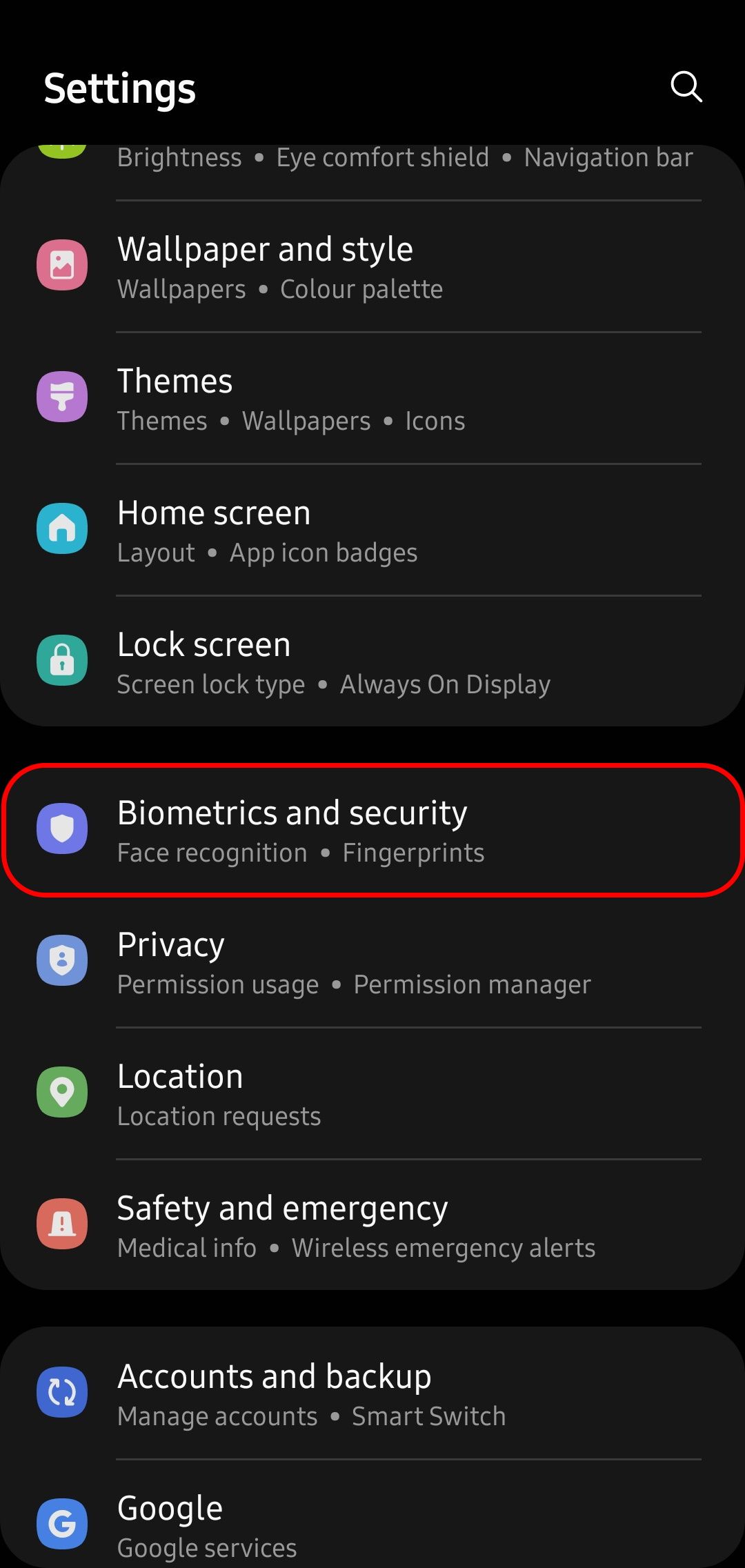
- On the main settings page, tap Biometrics and security
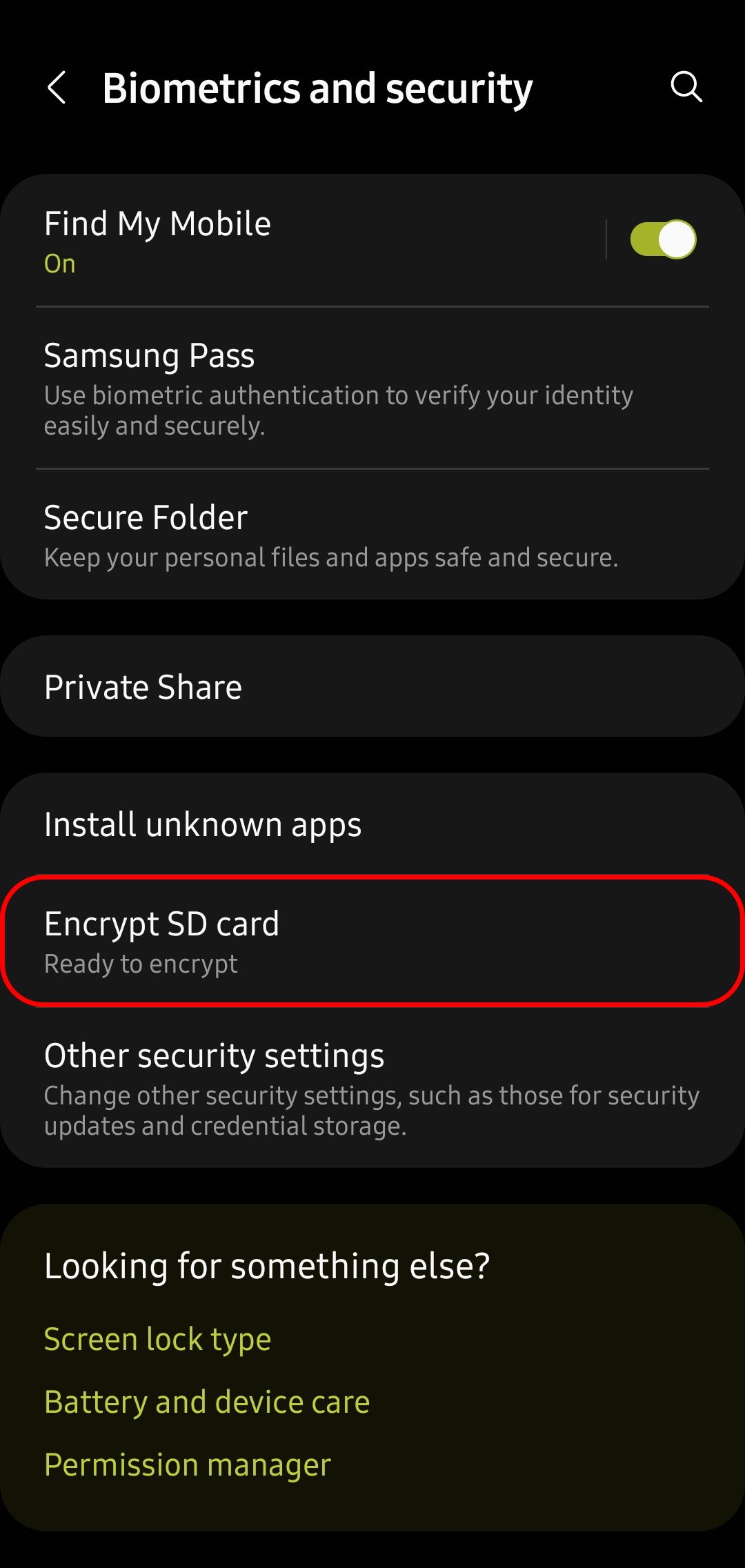
- On the Biometrics and security page, scroll down and find the option titled Encrypt or decrypt SD card or Encrypt SD card.
- If the option available is Encrypt SD card (with Ready to encrypt in smaller text underneath), you do not have to do anything. If the option available is Encrypt or decrypt SD card (with SD card is encrypted in small text underneath), then you need to decrypt the SD card before you continue.
- In order to decrypt the SD card, tap Encrypt or decrypt SD card to open the encryption options.
- On the encryption options page, tap Decrypt SD card at the bottom of the page—enter your lock screen credentials if asked—and wait for the process to complete.
Once your microSD card is decrypted, your data on it is no longer encrypted—meaning the data is less secure—but it will be accessible from your phone after the factory reset completes, allowing you to access any backups or media files you may want to transfer via microSD storage.
If you need to encrypt your microSD card the next time you set up your phone, you will need to offload all the data to a computer or the internal storage of the device before starting the encryption process, since encrypting the microSD card erases all the data stored on it in the process.
How to factory reset your Samsung Galaxy device
Resetting your device will wipe all the information on the internal storage of your phone, so it’s a good idea to back up all the information on your device before starting the factory reset process—if you are unsure of how to do a backup, there are a number of ways to do it, so take a look at our guide on how to back up your Android device and make sure that the backup you made is complete before starting the factory reset. Once you have completed the backup, it’s time to reset your device. In order to start the reset process, make sure you know your Samsung account credentials and the lock-screen password or pattern, because you will need to enter both your Samsung account password and lock-screen pattern or password to complete the reset. Once you have your security credentials ready, open the Settings app and follow these steps:
- Scroll down and tap General management to open the General management page.
- On the General management page, tap Reset to open the Reset page with various different reset options available.
- On the Reset page, tap Factory data reset to open the Factory reset page.
- On the Factory data reset page, review all the accounts and apps to make sure you have synced each of them recently—it’s a good idea to make sure your contacts are properly synced, and any messaging apps are backed up.
- Once you have confirmed that all your accounts are synced and your app data is safe, scroll down and tap the Reset button.
- If you have a passcode login or pattern unlock set up, you’ll have to enter that in order to proceed.
- On the next Factory data reset page, tap the Delete all button to start the factory reset process.
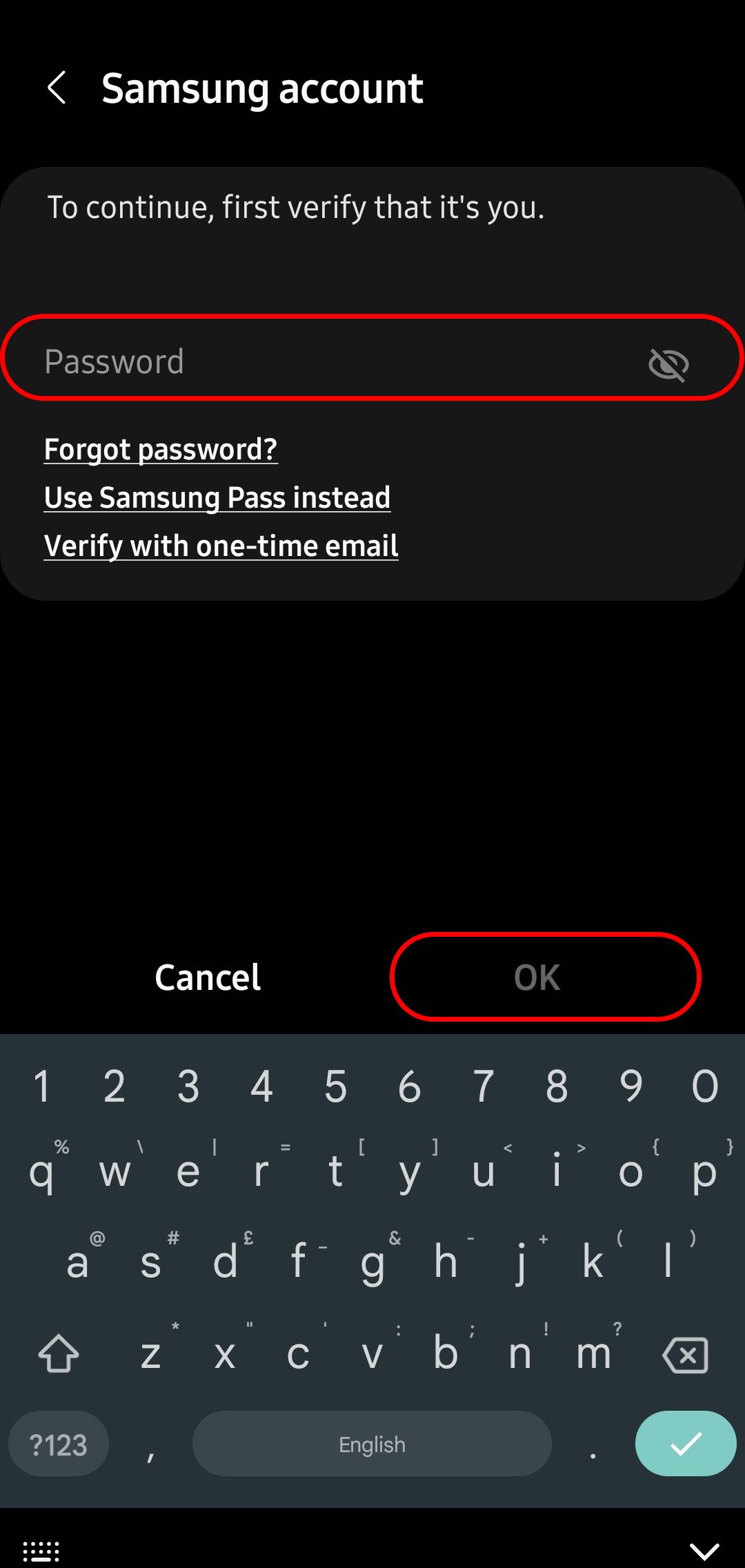
- When you tap Delete all, your phone will ask you to enter the credentials for the Samsung account you have linked to the device—enter your password in the required field, and then tap OK to start the factory reset process.

Once you start the factory reset process, your phone will permanently erase all the data stored on your device’s internal storage. During the reset process, your phone will restart at least once, and when the process is complete, you will need to complete the device setup if you plan to continue using it going forward. If you plan on selling your phone or handing it down to friends or family, don’t go any further.
Is there another way?
Factory resetting a device often makes sense, even if you plan to continue using it as your daily-driver—it’s a great way to keep it feeling fresh, and an annual digital declutter is never a bad thing if your phone is a bit bogged down, or if there are just too many apps to go through and delete manually. A reset can also be a godsend if you’re unable to unlock your device—maybe a bad lock screen app, or a faulty driver has you locked out of your phone— in which case, you can try factory reset your device via the bootloader.
